VDI Lab Selfservice Portal
Note
The selfservice portal has only been applied for the following classes and courses yet: SWS1, ITS, ITSI
If you are unable to access your lab environment, the self-service portal offers two recovery options:
- Restart your environment
- Rebuild your environment
Warning
Please be aware that rebuilding your environment is a destructive action. This process will result in the permanent loss of all data stored on the machines within this lab
Individual students have the permission to reboot or reset their personal environments. In contrast, lecturers are authorized to perform this action for any student in the class.
Accessing the Selfservice Portal
- Navigate to the VDI gateway at https://vdi.cloudlab.zhaw.ch.
- Log in using your standard ZHAW credentials.
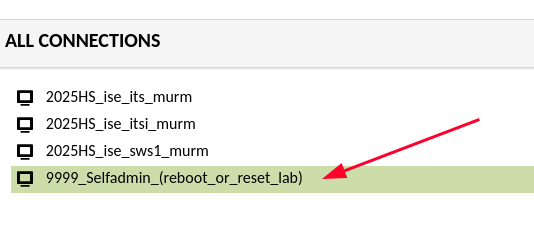
- After logging in, your available VDI connections will be displayed.
-
Select the connection labeled 9999_Selfadmin_(reboot_or_reset_lab) to manage your lab environment.
-
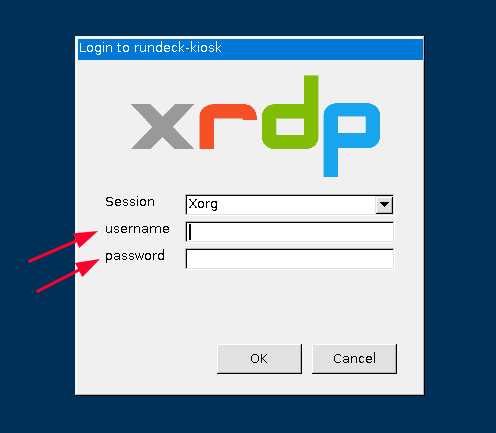
A browser session starts, login using your ZHAW credentials:
-
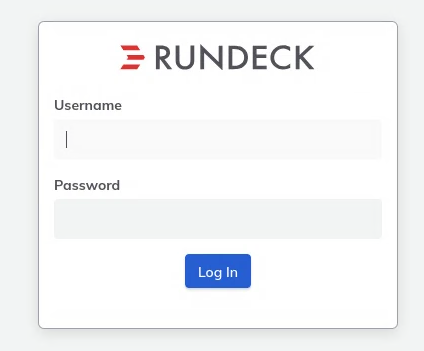
You will be redirected to our selfadmin portal. Please login again with your ZHAW credentials.
-
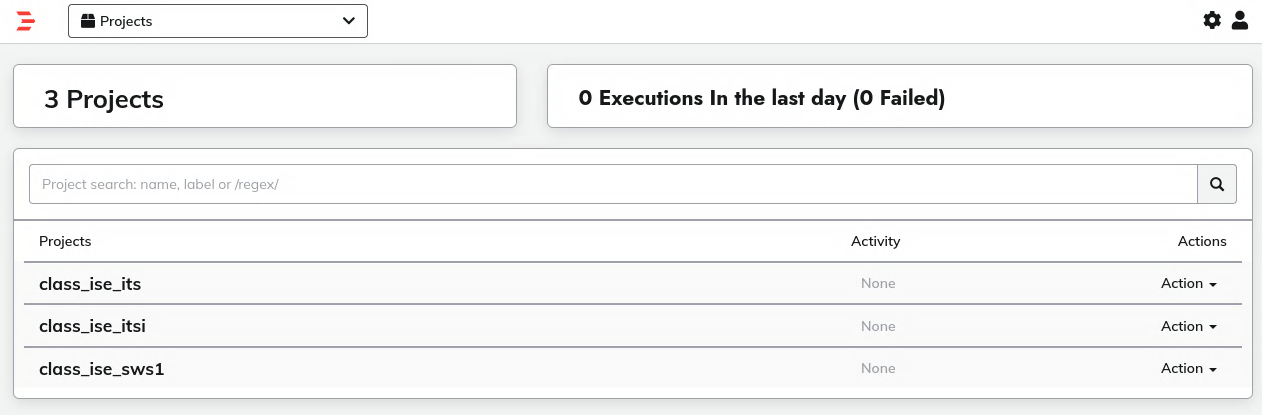
After you have successfully logged in, the system will display all lab environments that you are authorized to use.
Resetting Individual Lab Assets
This procedure outlines the process for resetting individual lab assets and is applicable to both students and lecturers.
- Select the project that corresponds to your lab session.
- Choose between the 'Reboot' or 'Rebuild' actions.
-
Click the green arrow next to your choice to begin the process.

Logging Out of the Application
-
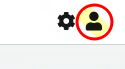
Once your task has been initiated, you may log out. Click the user profile icon in the top-right corner and select Logout.
-
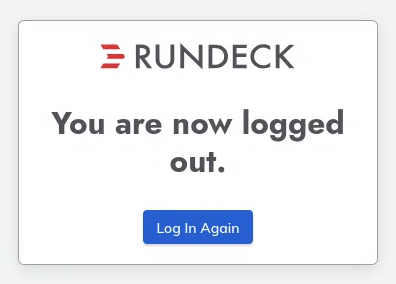
A confirmation message will appear once you have been successfully logged out.
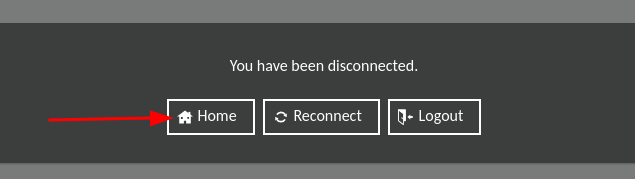
Disconnection from the VDI Session
To end your session and return to the main portal, you have two options:
- Close Browser Tab: Alternatively, you can simply close the browser tab to end the session. To reconnect, you must log in again at https://vdi.cloudlab.zhaw.ch.
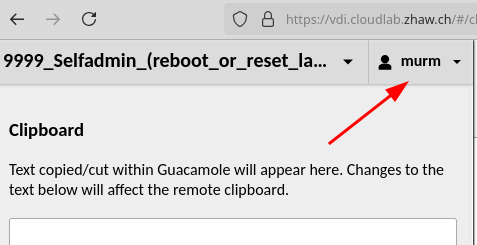
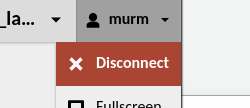
- Keyboard Shortcut: Press
Shift+Ctrl+Altto open the side menu. Click your username, select Disconnect, and then click Home.
Task Completion Times
Please be aware or the estimated times for the following tasks:
- Reboot: Approximately 1 minute.
- Rebuild: Approximately 3 minutes.
You will be able to log in again to your lab, as soon as the selected server process is complete. Your patience is appreciated.
Superuser Access (For Lecturers and Authorized Staff)
To access the self-service portal, please follow the same login procedure described previously. After logging in, you will be presented with a list of your active classes. Select the relevant class to proceed.
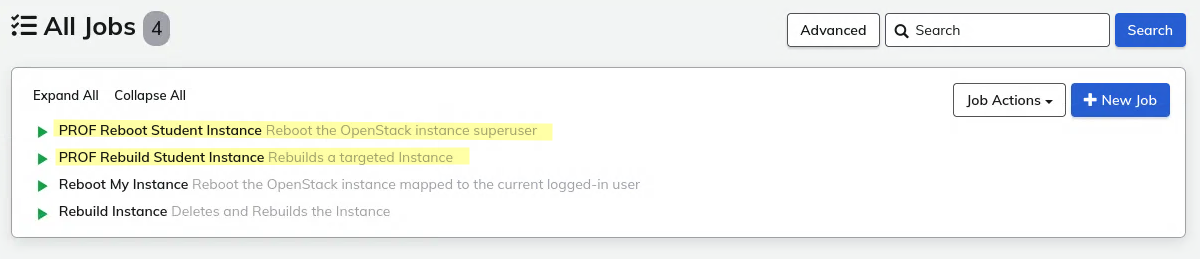
Once a class is selected, a list of available tasks will be displayed. In addition to the standard options, superuser accounts have access to the following exclusive tasks, which are highlighted in yellow in the interface:
- PROF Reboot Student Instance: Reboots a targeted student's OpenStack instance.
- PROF Rebuild Student Instance: Deletes and rebuilds a targeted student's instance.
Executing a Superuser Task
-
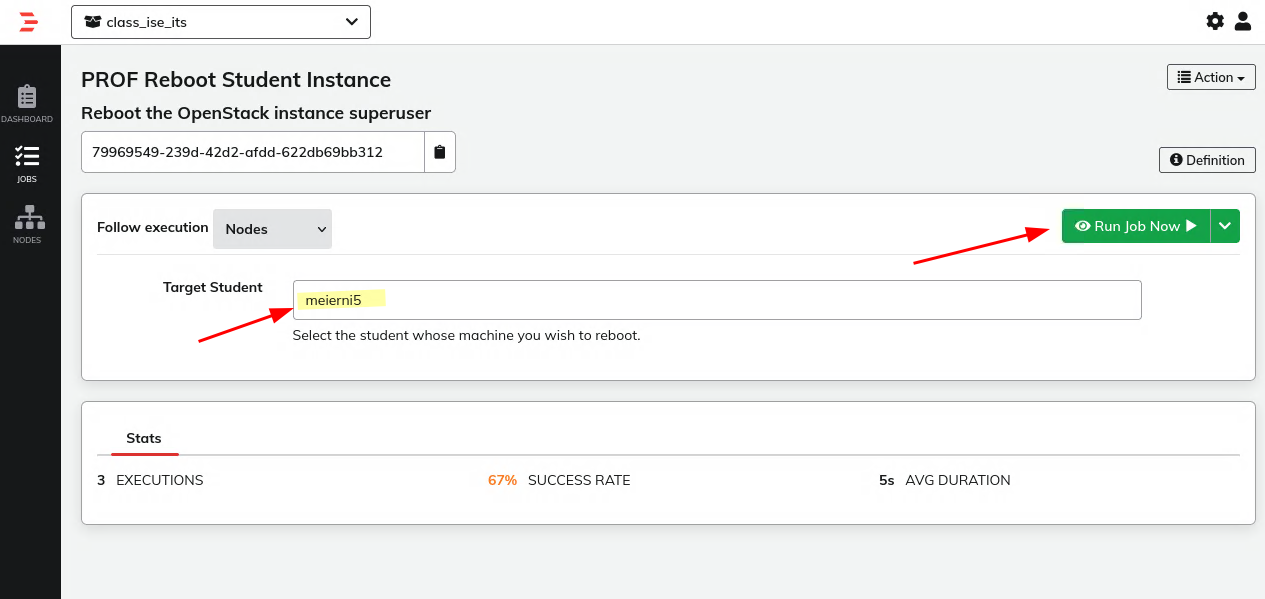
To initiate a task, click the green arrow next to the job name. A job execution window will open.
-
In the form that appears, you will be prompted to enter the student's username in the "Target Student" field.
-
Click the Run Job Now button to begin.
-
Please allow a few moments for the process to finish. Upon successful completion, a green SUCCEEDED message will be displayed in the status log.
Important Guidelines
- Scope: Please ensure these functions are only used for students enrolled in your selected course.
- Verification: It is critical to confirm that the correct student username is entered before running the job to prevent errors.
- Support: If a job fails or you encounter any issues, please contact the system administrator for assistance.
Notes
- Only restart instances for students in your course.
- If the restart fails, contact the system administrator for support.
- Be sure you select the correct student abbreviation before running the job.