Instance Installation Tutorial
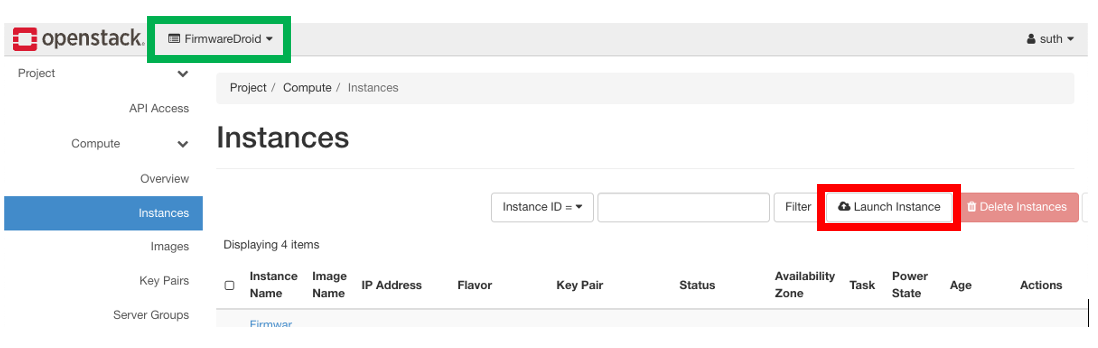 First select the project where you want to spawn a new virtual machine. Click then on the "Launch Instance" button.
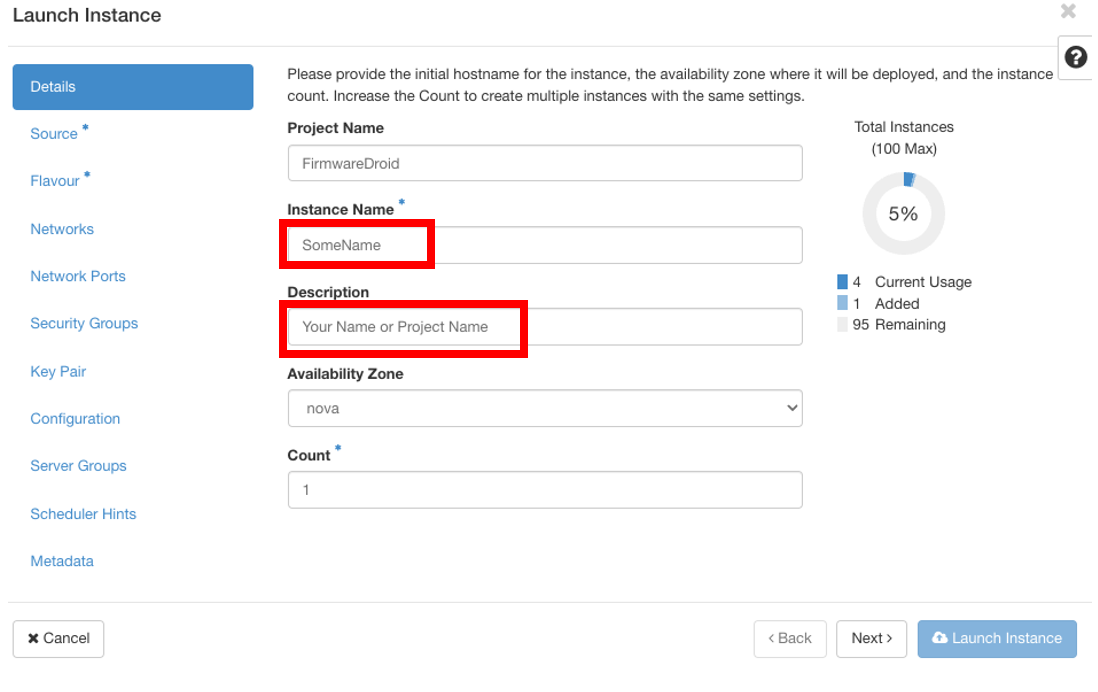 In the "Details" tab you can define an instance name and description. Please set a useful name and instance description.
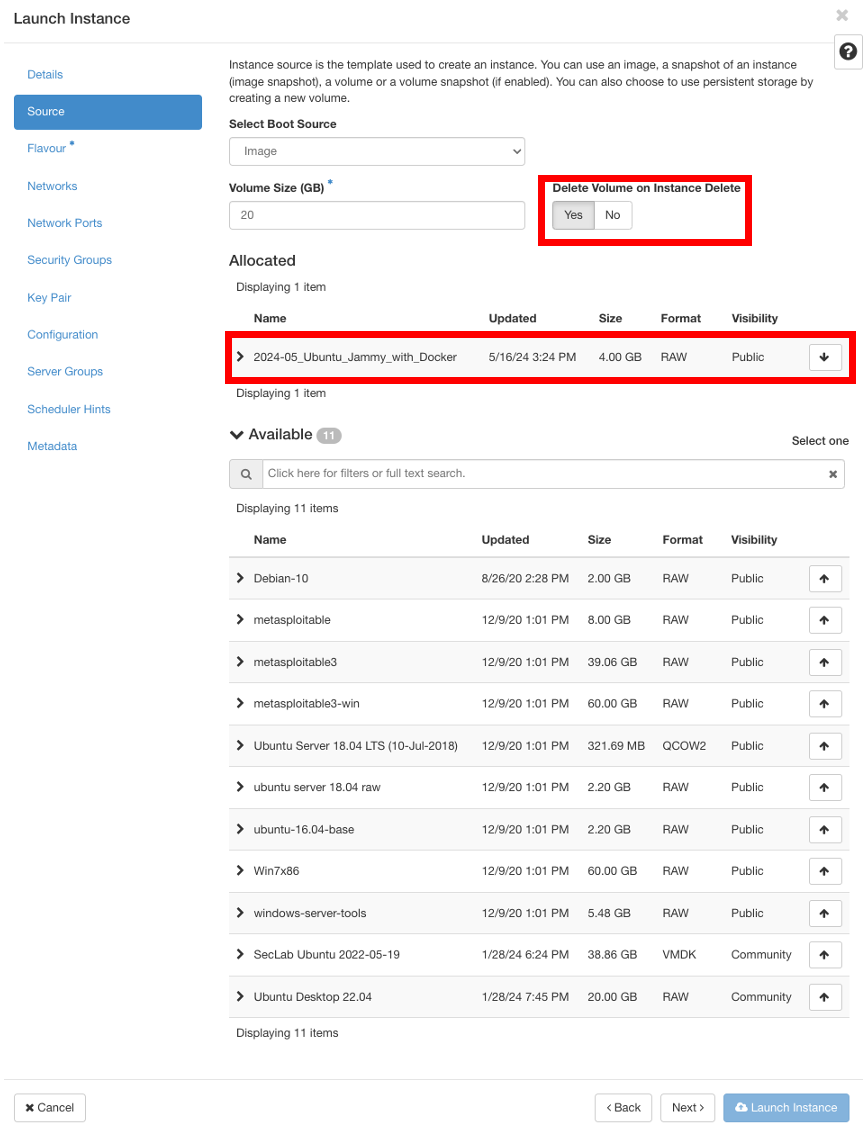 In the tab "Source" always select the "Ubuntu_Jammy_with_Docker" image. This image has some key features defined like a master ssh key, auto-updates, and some pre-installed packages. Other images should only used in case you know what you do and do not need any recovery options. Set the "Delete Volume on Instance Delete" to "Yes". This will ensure that the Volume attached to the instance is as also deleted when the instance is removed.
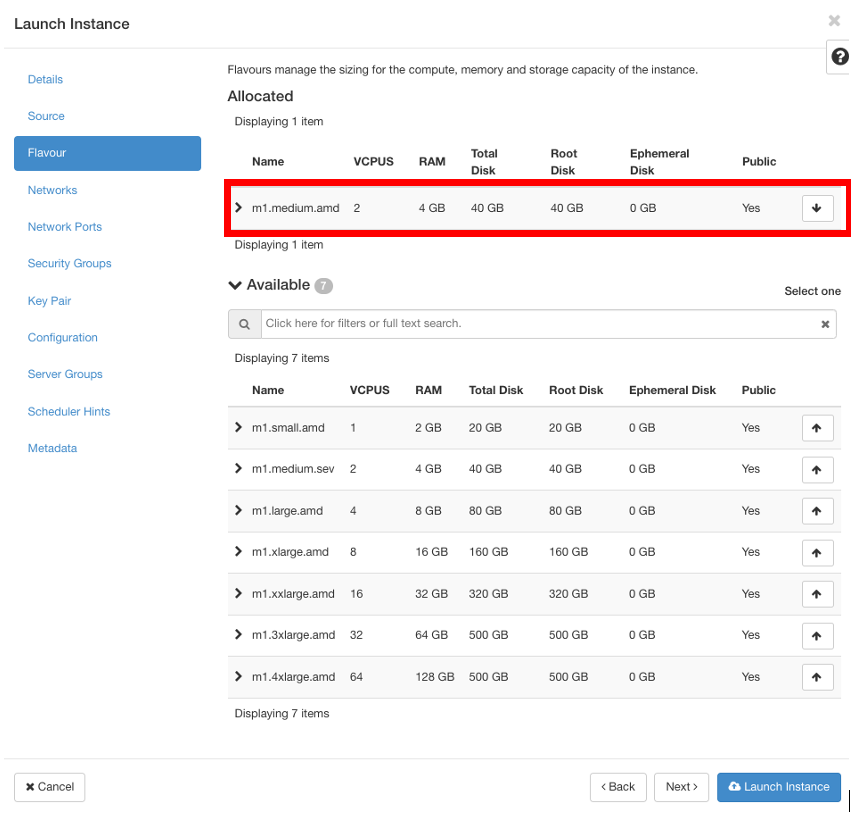 Change to the tab "Flavour". Select the smallest possible flavour for your instance. We have a fair use policy. We have limited hardware resource. Thus, please use the available resources fair and do not make "3xlarge" or "4xlarge" instances if you don't need them.
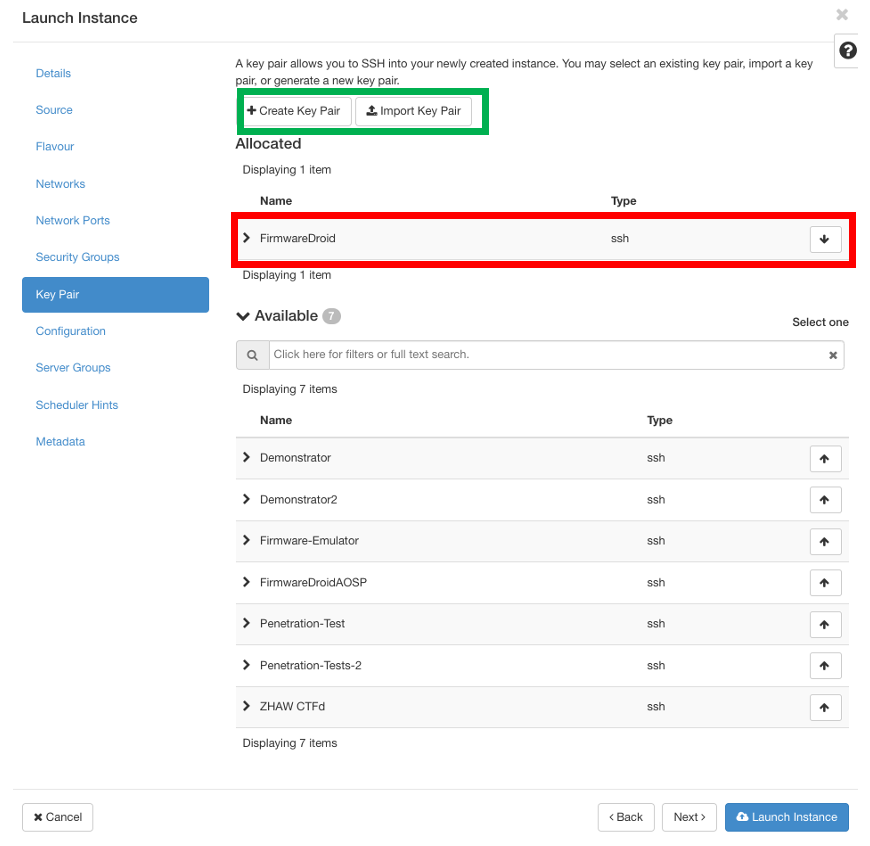 Change to the tab "Key pair". Set here the ssh key pairs that you want to install on the machine. This keys are used after the instances has spawned to control the server. If you do not select any key pair here, you will not be able to access the machine and need to respawn the instance with a valid key pair. If you do not have any key pair you can create a new one or import one.